Hotel Housekeeping Auto-Assignment
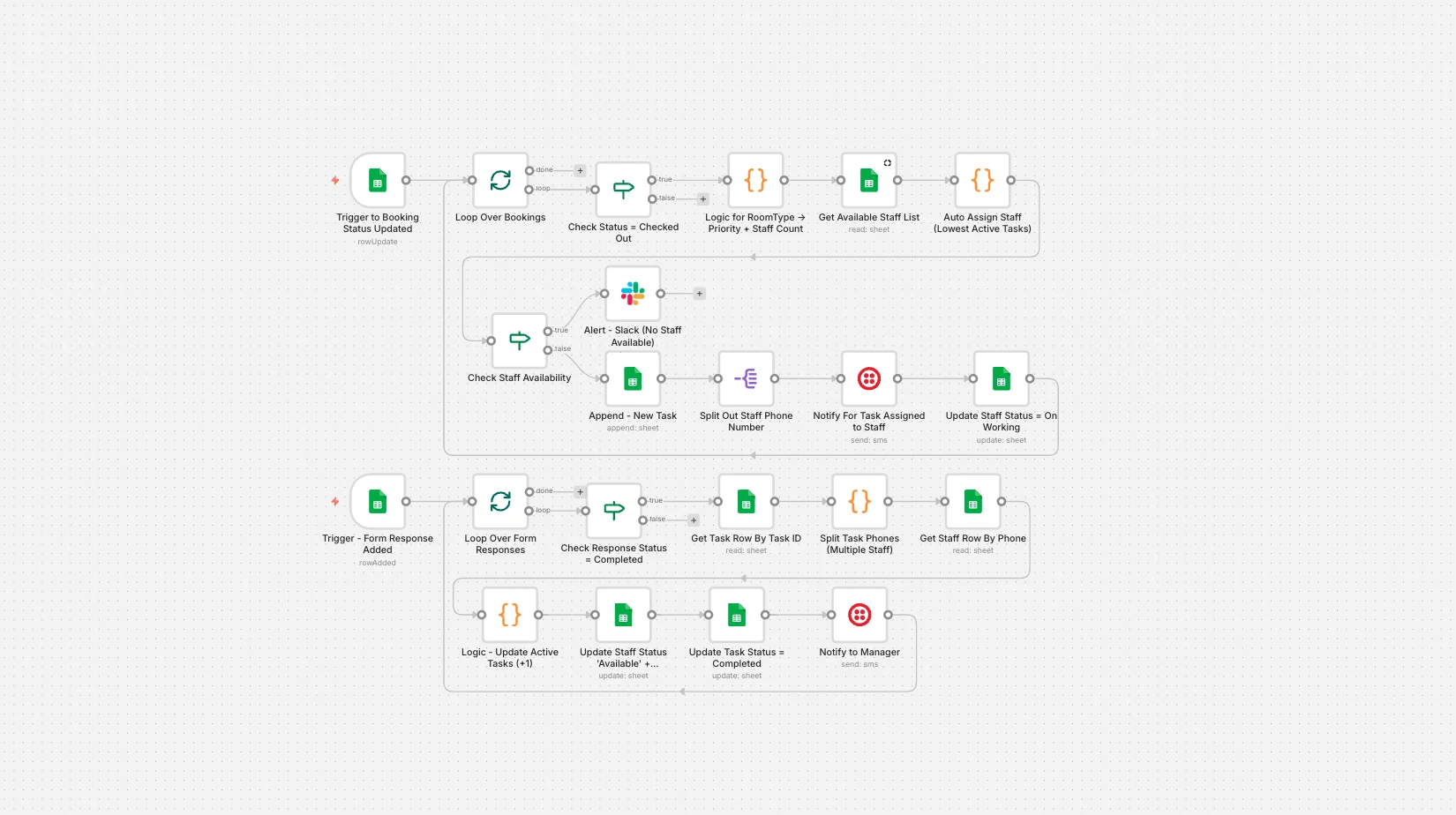
When a guest checks out, a cleaning task is created and assigned to the least-busy available staff based on room type. Staff get a WhatsApp alert and close the task through a form.
On this page
How it works
- A booking status change to checked out starts the workflow.
- Room type decides priority and how many staff are needed.
- Available staff with the fewest active tasks are assigned, and Slack is alerted if nobody is free.
- Staff are notified on WhatsApp and marked as busy.
- A completion form response closes the task and frees the staff member.
Use cases
- Hotels and resorts
- Serviced apartments
- Hostels
What you need
This workflow connects to these apps.
- n8n
- Google Sheets
- Slack


You'll need an n8n instance, on n8n Cloud or self-hosted, and these credentials. Our credentials guide shows how to create each one.
- Google Sheets Trigger account
- Google Sheets account
- Slack account
- Twilio account

Data setup
Create these tables with these exact column names before the first run.
| Table | Columns |
|---|---|
| Housekeeping Auto-Task → BookingsGoogle Sheets | Columns are in the README. |
| Housekeeping Auto-Task → StaffGoogle Sheets | StatusActivePhoneStaff IDActive Tasks |
| Housekeeping Auto-Task → TasksGoogle Sheets | Task IDBooking IDRoom NoRoomTypeCleaning MinutesPriorityAssigned ToPhoneStatusCreatedAtCompletedAt |
| Housekeeping Auto-Task → Form Responses 1Google Sheets | Columns are in the README. |
Setup
- Download the JSON and import it into n8n with Import from File, or copy it and paste it onto an empty canvas. The import guide walks through both.
- Connect the credentials listed above.
- Point the Sheets, Airtable, Drive, and Slack nodes at your own files and channels.
- Replace placeholder emails, phone numbers, and form links with your own.
- Times use the America/New York timezone and dates use MM/DD/YYYY. Change them if you need to, then test and activate. The setup guide covers this step by step.
Nodes
| Node | Type |
|---|---|
| Loop Over Bookings | splitInBatches |
| Trigger to Booking Status Updated | googleSheetsTrigger |
| Check Status = Checked Out | if |
| Logic for RoomType → Priority + Staff Count | code |
| Get Available Staff List | googleSheets |
| Auto Assign Staff (Lowest Active Tasks) | code |
| Alert - Slack (No Staff Available) | slack |
| Check Staff Availability | if |
| Append - New Task | googleSheets |
| Split Out Staff Phone Number | splitOut |
| Notify For Task Assigned to Staff | twilio |
| Update Staff Status = On Working | googleSheets |
| Trigger - Form Response Added | googleSheetsTrigger |
| Loop Over Form Responses | splitInBatches |
| Check Response Status = Completed | if |
| Get Task Row By Task ID | googleSheets |
| Split Task Phones (Multiple Staff) | code |
| Get Staff Row By Phone | googleSheets |
| Logic - Update Active Tasks (+1) | code |
| Update Staff Status 'Available' + 'ActiveTasks' | googleSheets |
| Update Task Status = Completed | googleSheets |
| Notify to Manager | twilio |
Frequently asked questions
When a guest checks out, a cleaning task is created and assigned to the least-busy available staff based on room type. Staff get a WhatsApp alert and close the task through a form. It's a 25-node n8n workflow.
An n8n instance, on n8n Cloud or self-hosted, and credentials for Google Sheets, Slack, and Twilio. It uses only nodes that ship with n8n, so there's nothing else to install.
It works with 4 tables in Google Sheets. Create them with the column names listed under Data setup on this page before the first run.
Download the JSON, then in n8n create a new workflow, open the menu in the top right, and choose Import from File. You can also copy the JSON and paste it onto an empty canvas.
Yes. It's free to download, import, and change, with no sign-up. You only pay for the apps it connects to, where those aren't free on your plan.