Form Response Sentiment Scoring
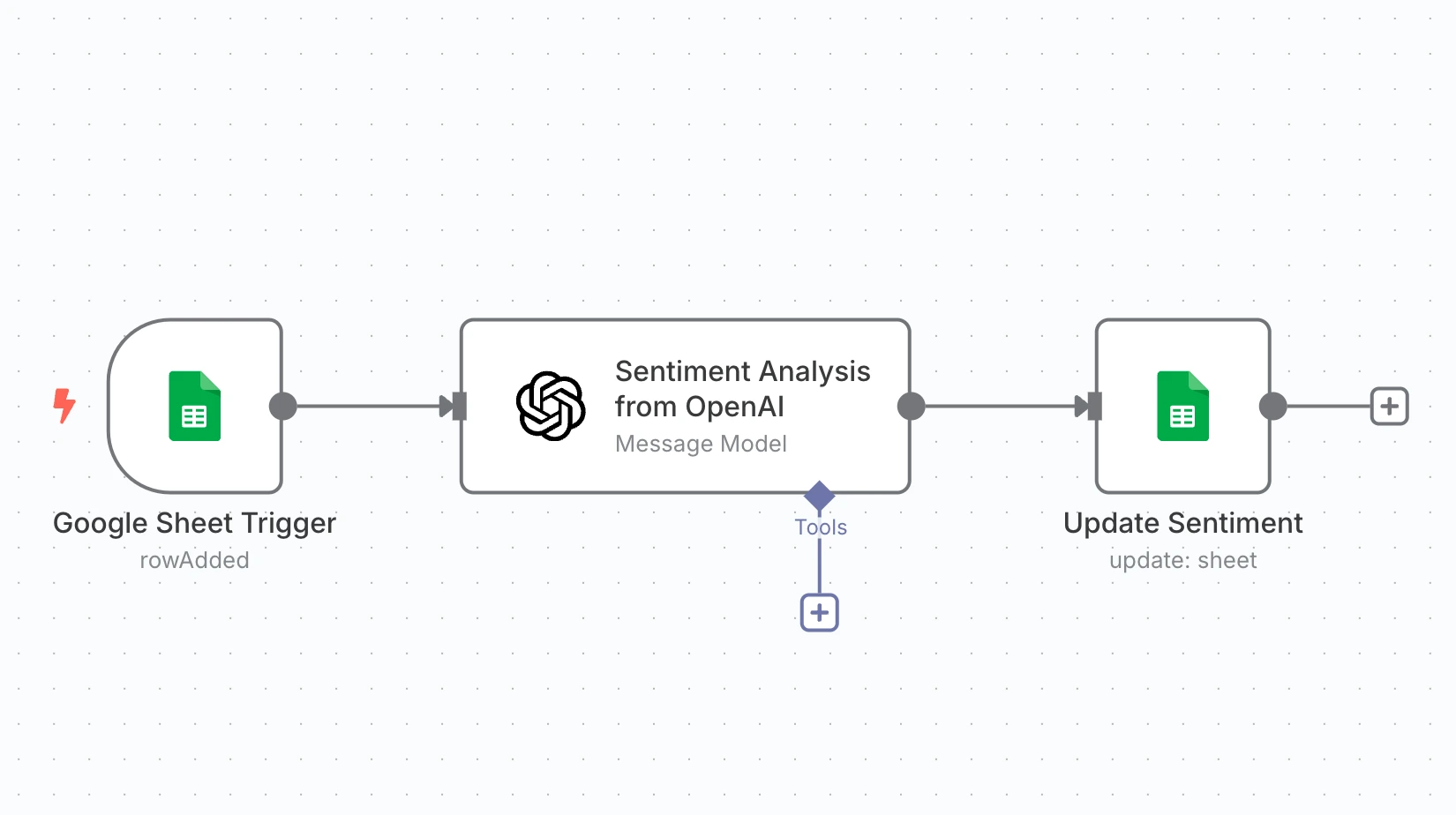
Every new Google Form response is analyzed by AI and its sentiment is written straight back into the sheet, so you can see at a glance how customers feel.
At a glance
- Category
- Customer Support
- Nodes
- 3
- Apps
- OpenAI, Google Forms, Google Sheets
- Price
- Free
On this page
How it works
- A new form response lands in Google Sheets.
- AI classifies the sentiment of the feedback.
- The result is written back to the same row.
Use cases
- Product feedback surveys
- Post-purchase reviews
- Event feedback
What you need
This workflow connects to these apps.
- OpenAI
- Google Forms
- Google Sheets


You'll need an n8n instance, on n8n Cloud or self-hosted, and these credentials. Our credentials guide shows how to create each one.
- Google Sheets Trigger account
- Google Sheets account
- OpenAI account
Data setup
Create these tables with these exact column names before the first run.
| Table | Columns |
|---|---|
| Customer Feedback → Form Responses 3Google Sheets | EmailSentiment |
Setup
- Download the JSON and import it into n8n with Import from File, or copy it and paste it onto an empty canvas. The import guide walks through both.
- Connect the credentials listed above.
- Point the Sheets, Airtable, Drive, and Slack nodes at your own files and channels.
- Replace placeholder emails, phone numbers, and form links with your own.
- Times use the America/New York timezone and dates use MM/DD/YYYY. Change them if you need to, then test and activate. The setup guide covers this step by step.
Nodes
| Node | Type |
|---|---|
| Google Sheet Trigger | googleSheetsTrigger |
| Update Sentiment | googleSheets |
| Sentiment Analysis from OpenAI | openAi |
Frequently asked questions
Every new Google Form response is analyzed by AI and its sentiment is written straight back into the sheet, so you can see at a glance how customers feel. It's a 3-node n8n workflow.
An n8n instance, on n8n Cloud or self-hosted, and credentials for Google Sheets and OpenAI. It uses only nodes that ship with n8n, so there's nothing else to install.
It works with 1 table in Google Sheets. Create it with the column names listed under Data setup on this page before the first run.
Download the JSON, then in n8n create a new workflow, open the menu in the top right, and choose Import from File. You can also copy the JSON and paste it onto an empty canvas.
Yes. It's free to download, import, and change, with no sign-up. You only pay for the apps it connects to, where those aren't free on your plan.