AI Social Media Posting with Approval
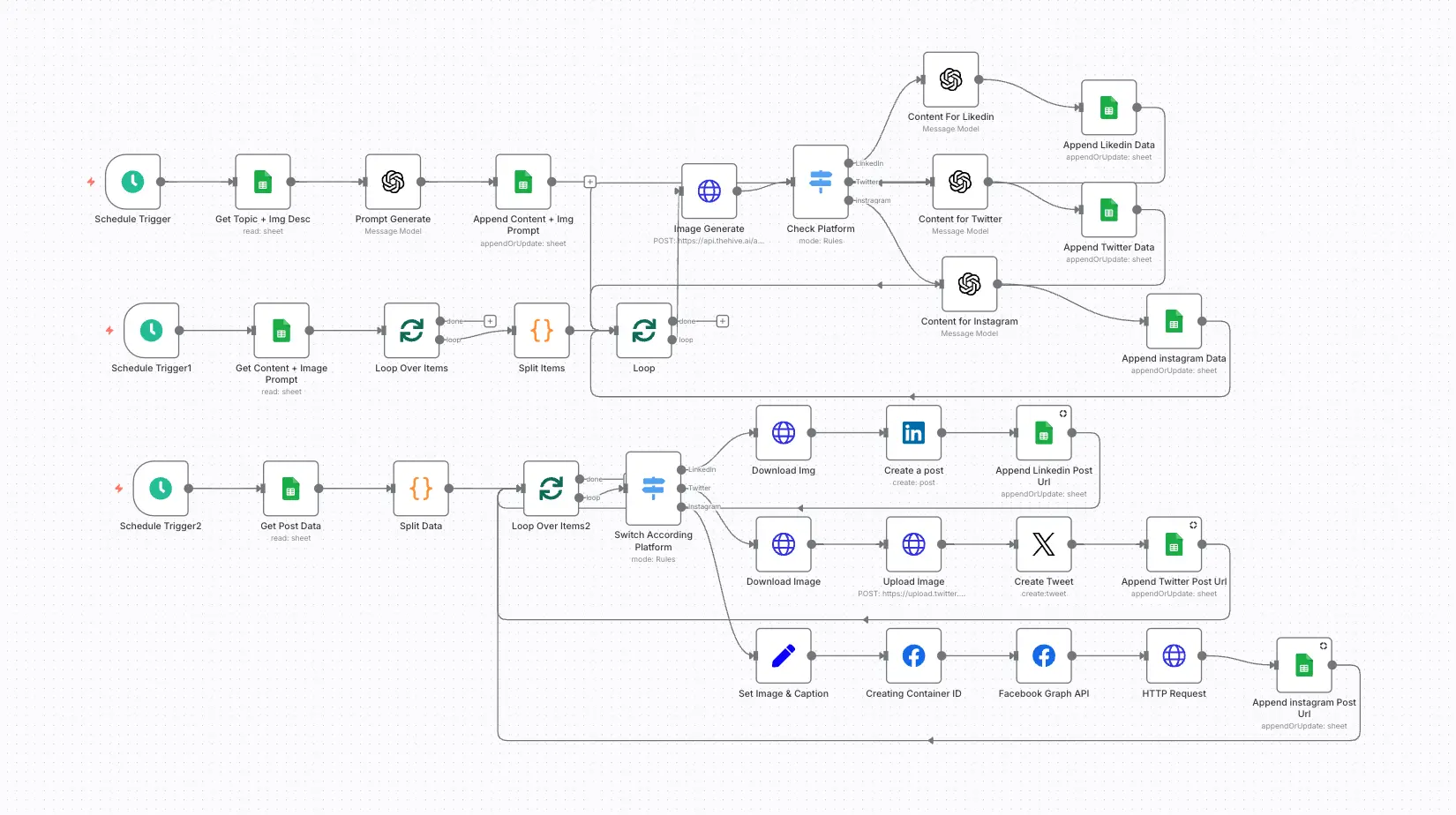
Generates posts and images for LinkedIn, X and Instagram with AI, holds them in a Google Sheet for approval, then publishes approved posts and saves the live links.
On this page
How it works
- On schedule, topics are read from the sheet and prompts are generated.
- AI writes platform-specific copy and creates an image.
- Drafts are saved to the sheet for approval.
- Approved posts are published to each platform.
- Post URLs are written back to the sheet.
Use cases
- Social media agencies
- Founders and personal brands
- Consistent content calendars
What you need
This workflow connects to these apps.
- Google Sheets
- OpenAI
- n8n


You'll need an n8n instance, on n8n Cloud or self-hosted, and these credentials. Our credentials guide shows how to create each one.
- Facebook Graph account
- Google Sheets account
- Http Bearer Auth account
- LinkedIn account
- OpenAI account
- X OAuth account
- X account


Data setup
Create these tables with these exact column names before the first run.
| Table | Columns |
|---|---|
| Auto social media post → Sheet1Google Sheets | IdLinkedIn ContentLinkedIn images urlTwitter ContentTwitter images urlPrompt StatusPosting StatusLinkedin Post URLPosted DateTwitter Post URLLinkedIn images promptLinkedIn Content PromptInstagram Content PromptInstagram images promptTwitter images promptTwitter Content PromptInstagram ContentInstagram images urlInstagram Post URL |
Setup
- Download the JSON and import it into n8n with Import from File, or copy it and paste it onto an empty canvas. The import guide walks through both.
- Connect the credentials listed above.
- Point the Sheets, Airtable, Drive, and Slack nodes at your own files and channels.
- Replace placeholder emails, phone numbers, and form links with your own.
- Times use the America/New York timezone and dates use MM/DD/YYYY. Change them if you need to, then test and activate. The setup guide covers this step by step.
Nodes
| Node | Type |
|---|---|
| Schedule Trigger | scheduleTrigger |
| Create a post | linkedIn |
| Schedule Trigger1 | scheduleTrigger |
| Loop Over Items | splitInBatches |
| Prompt Generate | openAi |
| Schedule Trigger2 | scheduleTrigger |
| Check Platform | switch |
| Append LinkedIn Data | googleSheets |
| Append Twitter Data | googleSheets |
| Loop | splitInBatches |
| Loop Over Items2 | splitInBatches |
| Switch According Platform | switch |
| Image Generate | httpRequest |
| Content for Twitter | openAi |
| Content For LinkedIn | openAi |
| Create Tweet | twitter |
| Append Linkedin Post Url | googleSheets |
| Append Twitter Post Url | googleSheets |
| Download Image | httpRequest |
| Upload Image | httpRequest |
| Download Img | httpRequest |
| Get Post Data | googleSheets |
| Get Content + Image Prompt | googleSheets |
| Append Content + Img Prompt | googleSheets |
| Get Topic + Img Desc | googleSheets |
| Content for Instagram | openAi |
| Append instagram Data | googleSheets |
| Set Image & Caption | set |
| Creating Container ID | facebookGraphApi |
| Facebook Graph API | facebookGraphApi |
| Append instagram Post Url | googleSheets |
| HTTP Request | httpRequest |
| Split Items | code |
| Split Data | code |
Frequently asked questions
Generates posts and images for LinkedIn, X and Instagram with AI, holds them in a Google Sheet for approval, then publishes approved posts and saves the live links. It's a 35-node n8n workflow.
An n8n instance, on n8n Cloud or self-hosted, and credentials for Facebook, Google Sheets, HTTP, LinkedIn, OpenAI, and X. It uses only nodes that ship with n8n, so there's nothing else to install.
It works with 1 table in Google Sheets. Create it with the column names listed under Data setup on this page before the first run.
Download the JSON, then in n8n create a new workflow, open the menu in the top right, and choose Import from File. You can also copy the JSON and paste it onto an empty canvas.
Yes. It's free to download, import, and change, with no sign-up. You only pay for the apps it connects to, where those aren't free on your plan.